
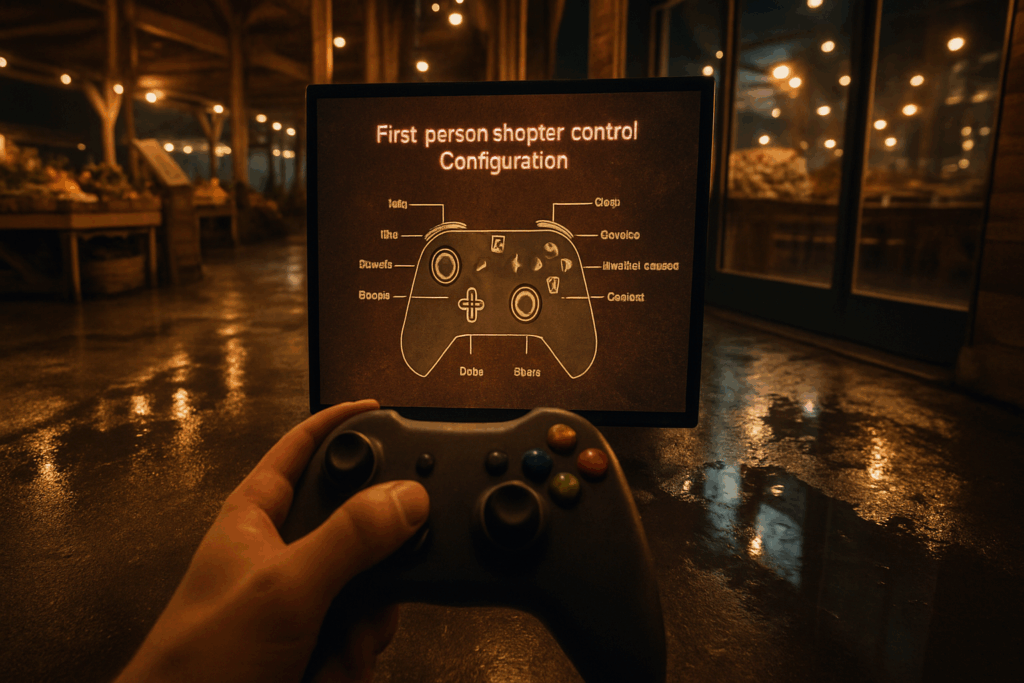
Why Settings Matter More Than You Think
At the highest levels of competitive FPS play, the smallest tweaks can decide a fight. Settings aren’t just about comfort they’re a critical part of optimizing performance. Whether you play on keyboard and mouse or controller, your input setup should act as an extension of your reflexes.
Why Pro Players Take Settings Seriously
Pro FPS players aren’t just talented they’re precise. Hundreds of hours are spent fine tuning every detail of their setup until it matches their playstyle:
Milliseconds matter when tracking targets or reacting to sudden movement.
Consistency is key when your inputs feel the same every time, your muscle memory can shine.
Gear familiarity reduces hesitation, which gives top players their edge under pressure.
Before the Grind Lock It All In
Before jumping into the ranked ladder, smart players make sure every piece of their setup is dialed in:
Control layout (keybinds or buttons) should feel intuitive and require minimal adjustment.
Sensitivity and actuation times should match the player’s reaction profile.
Hardware settings need to be tested under game conditions.
In pro play, it’s not uncommon for players to freeze out several practice sessions just to refine gear feel. Once they do? They don’t touch it again mid season.
Bottom line: If your goal is high performance, don’t leave your settings to chance. Your inputs should support your instincts not fight them.
Keyboard Setup: The Foundation of FPS Precision
If you’re still using default keybinds, you’re already losing fights. Optimizing your layout trims response time and keeps your fingers where the action is. For most players, this means crouch on Left Ctrl, jump on Space, and walk on Left Shift. Keep your utility binds grenades, abilities, gear swaps tucked tightly around WASD. Muscle memory forms faster when everything sits in the same zone.
Next: kill the accidental keys. Disable your Windows key, or risk minimizing mid firefight. Go even further by remapping keys you barely touch. That Caps Lock? Make it something useful. Thumb friendly shortcuts are underrated use them.
Then there’s the gear itself. Your keyboard matters. Budget rubber domes ghost key presses under pressure. Aim for something with N key rollover and anti ghosting. These features make sure every input registers, no matter how fast or frantic your movement gets.
For top tier setups, look into optical switches. Zero debounce delay. One millisecond actuation. You press, it fires instantly. No fluff, no lag, just raw performance.
This isn’t about looking cool. It’s about playing clean, fast, and flawless.
Controller Setup: Dominating on Sticks
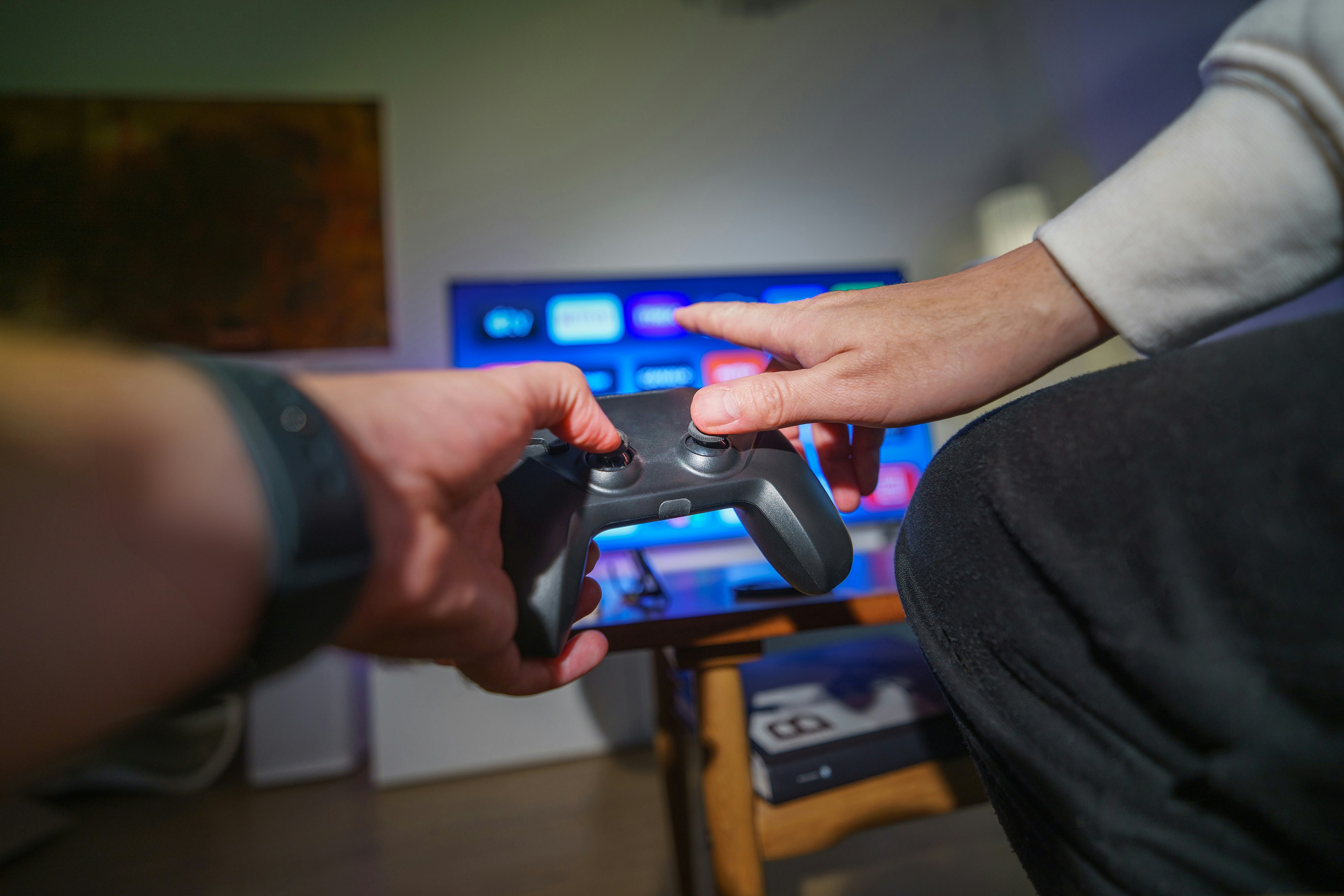
Whether you’re playing on console or PC with a controller, getting your settings dialed in can make or break your competitive edge. Here’s a breakdown of what matters most when optimizing stick based input for FPS play.
Stick Sensitivity: Speed vs. Accuracy
Finding the right stick sensitivity is a balancing act. Too low, and your aiming may feel sluggish. Too high, and you’ll overshoot your target.
Low sensitivity offers precise control but slows down turn speed.
High sensitivity allows quicker reactions, but consistency may suffer.
Pro sweet spot: Most competitive players sit in the medium range fast enough to track quickly, slow enough to stay accurate.
Tip: Test your settings in a training range before jumping into ranked.
Leveraging Aim Assist
Aim assist is designed to help controller players keep up with the precision of a mouse but it only works if you understand its behavior.
Don’t fight the assist. Sudden or erratic stick movements can disable or weaken the assist.
Follow through with your movement. Steady tracking allows aim assist to do its job.
Adjust sensitivity accordingly. Too high a setting can reduce aim assist effectiveness.
Button Mapping: Movement Without Sacrifice
Button layout changes can free up your thumbs and boost overall efficiency.
Remap non essential actions to avoid finger stacking.
Use back paddles controllers like the Elite Series or Scuf allow jumping, sliding, or reloading without taking your thumbs off the sticks.
Reassign key combat moves to instantly reachable buttons, depending on your playstyle.
Dead Zones: Keeping Input Crisp
Dead zones determine how much you need to move a stick before the game registers input. Setting these too wide can delay reaction time, while too narrow may cause drift.
Inner dead zone: Lower settings enhance responsiveness.
Outer dead zone: Helps prevent accidental max input, but don’t set it too high.
Best Practice: Start low and raise gradually until you eliminate stick drift without losing responsiveness.
Fine tuning these controller settings will dramatically boost your performance, especially in high pressure moments where every frame counts.
Universal Settings That Sharpen Performance
Performance isn’t just about raw skill it’s about creating a setup that removes friction. Whether you’re using a mouse or controller, these five settings can elevate your game instantly.
First, turn off mouse acceleration. This Windows feature messes with consistency by adjusting cursor speed based on how fast you move your mouse. In FPS play, that unpredictability kills muscle memory. Disable it in both the OS and your specific game settings.
For controller players, aim smoothing sounds helpful until you’re trying to snap to a target quickly. Some games enable smoothing by default, which can create input lag or hinder fast aim corrections. If your flicks feel sluggish or over assisted, turn smoothing off in settings and see how your aim sharpens.
Next, your gear to screen ratio matters. That means syncing your DPI (typically 400 800) and in game sensitivity with your field of view. The more standardized your setup is, the easier it is to control crosshair placement and reaction time. It’s like finding your strike zone you don’t want it to keep shifting.
If you’re jumping between titles like Valorant, Apex Legends, or Modern Warfare 3, keep your aim settings consistent. Tools like Aim Lab or training ranges can help match your sensitivity across games. A 1:1 aiming feel reduces readjustment time and keeps your crosshair control sharp.
Lastly, make your crosshair work for you. Visibility is everything when targets are moving fast. Choose a reticle color that stands out against most backgrounds. Tune size and thickness so it’s not too subtle, not too chunky. Some games allow dynamic reticles disable them for steadier tracking if needed.
These are system level tweaks every serious player should nail down. After that, it’s all about reps and awareness.
Bonus: What the Pros Are Using in 2026
When it comes to raw mechanics, settings matter and most pros are converging on a tight range that balances precision with speed. Mouse players typically stick to a DPI around 800. It’s not too fast, not too slow. Paired with in game sensitivity between 0.35 and 0.6, they’re optimizing for muscle memory and micro adjustments, not flashy flicks.
Over on controller, top players are running 4 4 or 5 5 sensitivity with a dynamic response curve. This keeps input smooth while still allowing fast turns when needed. It’s about staying snappy without spinning out.
You’ll also notice a trend in movement binds. For keyboard players, jump gets remapped to the scroll wheel easier to bunny hop or wall tech without fumbling. Controller users tap into back paddles for the same reason: jump or slide without taking thumbs off the sticks.
Want to take it a step further? 10 Pro Tips for Ranked Play in Valorant breaks it down even more.
 Veslina Vaythorne is the kind of writer who genuinely cannot publish something without checking it twice. Maybe three times. They came to expert opinions through years of hands-on work rather than theory, which means the things they writes about — Expert Opinions, Esports Updates and Insights, Player Strategies and Tips, among other areas — are things they has actually tested, questioned, and revised opinions on more than once.
That shows in the work. Veslina's pieces tend to go a level deeper than most. Not in a way that becomes unreadable, but in a way that makes you realize you'd been missing something important. They has a habit of finding the detail that everybody else glosses over and making it the center of the story — which sounds simple, but takes a rare combination of curiosity and patience to pull off consistently. The writing never feels rushed. It feels like someone who sat with the subject long enough to actually understand it.
Outside of specific topics, what Veslina cares about most is whether the reader walks away with something useful. Not impressed. Not entertained. Useful. That's a harder bar to clear than it sounds, and they clears it more often than not — which is why readers tend to remember Veslina's articles long after they've forgotten the headline.
Veslina Vaythorne is the kind of writer who genuinely cannot publish something without checking it twice. Maybe three times. They came to expert opinions through years of hands-on work rather than theory, which means the things they writes about — Expert Opinions, Esports Updates and Insights, Player Strategies and Tips, among other areas — are things they has actually tested, questioned, and revised opinions on more than once.
That shows in the work. Veslina's pieces tend to go a level deeper than most. Not in a way that becomes unreadable, but in a way that makes you realize you'd been missing something important. They has a habit of finding the detail that everybody else glosses over and making it the center of the story — which sounds simple, but takes a rare combination of curiosity and patience to pull off consistently. The writing never feels rushed. It feels like someone who sat with the subject long enough to actually understand it.
Outside of specific topics, what Veslina cares about most is whether the reader walks away with something useful. Not impressed. Not entertained. Useful. That's a harder bar to clear than it sounds, and they clears it more often than not — which is why readers tend to remember Veslina's articles long after they've forgotten the headline.